T65-2025 Impact of License files and licenses on BIOVIA Applications
BIOVIA® ULM Applications: Impact of License files and licenses on BIOVIA Applications.
Program
BIOVIA® ULM Application 2023, 2024, 2025, and 2026
Operating Systems
Operating Systems supported by BIOVIA® ULM Application
See the System Requirements documents for details
Background
This technical note is intended to inform all BIOVIA customers who are using Foundation hub, Pipeline Pilot, Workbook, CISPro and other ULM applications about the impact of License files and Licenses.
BIOVIA Applications are enabled and controlled via License files generated by Dassault Systèmes Licensing team. In general, all license files have one year validity. Licensing team renews them prior to expiry and sends them to customer contacts based on contractual agreement.
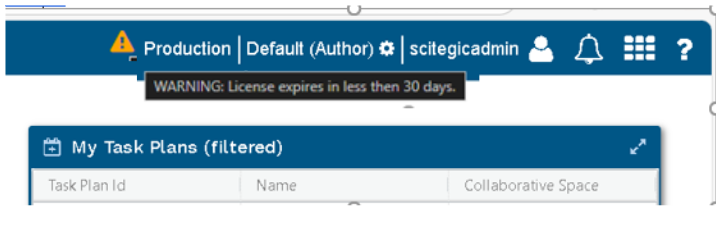
The application interface also shows warning about expiration date upon login. For example, as shown below, the system notifies the user with a message when the license is near expiry or has already expired.
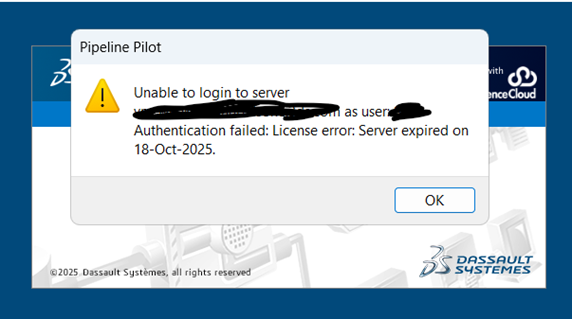
Once License files have expired, the system will not allow logins to BIOVIA Applications (for example – Pipeline Pilot, Workbook, CISPro etc.) until the license is renewed.
How to Renew License Files
- Have a copy of your new license file (*.LIC file) from your account manager.
- Stop all BIOVIA Application services except Foundation Hub application.
- Log into foundation hub web page as an administrator.
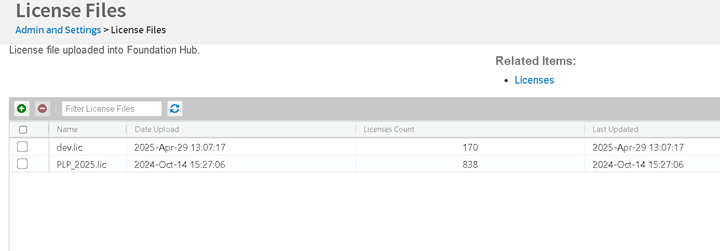
Browse to Admin & Settings à Settings à License Files. Click on the Green + icon to upload a new license file
.
- Log out and log back into Foundation Hub web page to confirm the license warning is cleared. If not, please log out and restart the foundation HUB application service from application server.
Remote into Pipeline Pilot (PLP) application server and browse to the Licenses folder under PLP install directory.
For example: - C:\Program Files\BIOVIA\PPS\licensing\Licenses
- Paste the new license file to this location.
- Restart the PLP Manager service.
- Log into PLP admin portal and PLP Pro Client to confirm login is valid.
- If applicable and the CISPro license file also needs to be updated, then browse to CISPro web interface as administrator (please restart CISPro services if stopped).
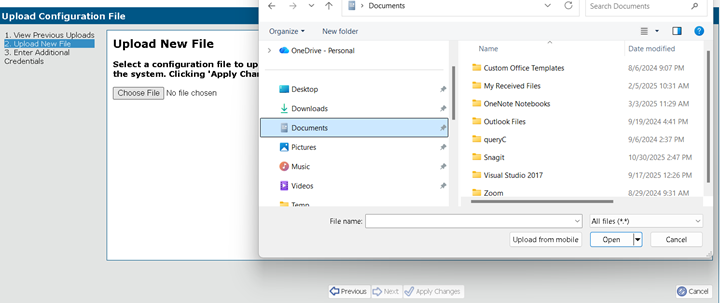
Find the "Upload Config File" option in the Select a view menu on the left pane or search for Upload and it will show up.
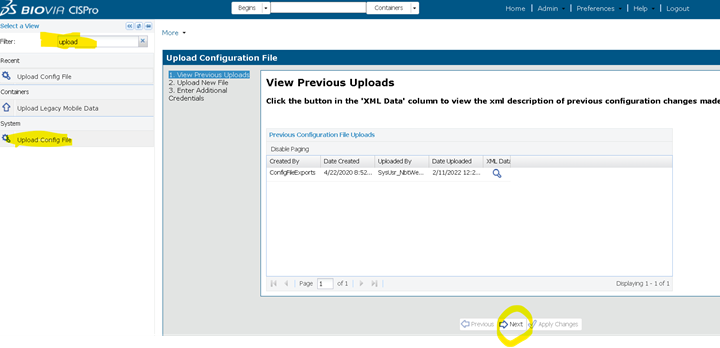
Click Next and browse to the location where the new CISPro license/config file is and select the Configabc*.xml file and Apply changes to complete.
- Restart Workbook (via Vault server) application services and confirm workbook client login.
- Restart other BIOVIA Application services as applicable and confirm availability.
How to contact BIOVIA Support
If you have any questions, please contact BIOVIA Support.
Need Assistance?
Our support team is here to help you make the most of our software. Whether you have a question, encounter an issue, or need guidance, we've got your back.